Pages

Subscribe:

Ads 468x60px

Total Pageviews

Showing posts with label laptop. Show all posts

Tuesday, 17 January 2012

Avoid using laptops in beds


Looks like the concept of spending quality time together is slowly fading away among couples, with most preferring to spend more time on their laptops than with each other in the bedrooms.

A study, which was carried out by Ikea on two million Britons, has indicated that couples are spending more time looking at their laptops in the bedroom than they do looking at each other.

It also stated that more and more people are putting their relationships at risk by using laptops in bed.

Christine Northam, a counsellor with Relate, warned the obsession with technology could lead to relationship problems.

"Modern technology provides us with brilliant tools but when its use becomes excessive and clutters the bedroom it can actually get in the way of relationships," the Daily Mail quoted her as saying.

"Technology is a major distraction and can lead others to think you're avoiding them," she added.

Northam said to avoid complication in relationship it is always better to talk with your partner while in bed.

"A quiet chat is a great way of connecting with family and friends," she said.

"We need to make time for talking face to face. When you're in bed it's the perfect time to turn off the tech and tune into your relationship," she added.

Saturday, 10 December 2011

Laptop WiFi May Damage Sperm..Study


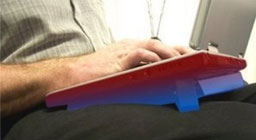
Extended use of laptop by placing it on the lap can damage male sperms, according to a new study published in the Journal of Fertility and Sterility.


For the study, scientists from the US and Argentina exposed sperms taken from 29 men to electromagnetic radiation (that came from the laptop) for four hours. Results revealed that after four hours of exposure, the sperm decreased its motility and deveoloped DNA damage.


Furthermore, about 25 percent of sperm stopped moving by virtue of closer exposure to laptop's Wifi radiation; but, when the laptop was kept away, only 14 percent of the sperm stopped moving.


Researchers also found out that DNA of the sperm with nine percent of exposure to radiation developed DNA damage. The damages caused are three times greater than the damage caused from sperm that are not exposed to radiation.


Researchers, however, reported that the results speculate that by keeping a laptop connected to wireless internet near testes or on lap, can significantly reduce male fertility. They also said that more vitro and in vivo future studies are needed to prove the connection between WIFI radiations and damage to the sperm.


In addition to sperm damage, the heat and radiation from the laptop can lead to a problem known as ‘toasted skin syndrome’. This condition puts you at a risk of skin cancer by giving rise to damaged and discoloured skin, reported by CBS News.


The experiment undertaken by the American and Argentinian team also showed that sperm were inactive i.e. they swam less frequently and had irreversible changes in the genetic code.


The findings of the study are questionable as the study is based on the semen taken from a man’s body. Real life setting could have given more back-up to the findings.

Wednesday, 30 November 2011

Using wi-fi on a laptop 'damages sperm'


Here's an advice for the tech-savvy generation -- browsing the net on a laptop computer connected with wireless technology can damage sperm counts, a new study has claimed. An international team has discovered that a laptop, using wi-fi, which is placed near male reproductive organs
reduced men's sperm quality and also their chances of experiencing fatherhood, The Daily Telegraph reported.

The study, led by the Nascentis Centre for Reproductive Medicine in Cordoba, Argentina and Eastern Virginia Medical School, found a quarter of the sperm placed next to a laptop for just a few hours were killed.

Evidence of DNA damage was also found. In comparison, sperm that was stored at the same temperature but away from a laptop showed a smaller drop in mobility and a significant reduction in DNA damage.

Meanwhile, semen placed under the computer without the wi-fi connected did not experience significant levels of sperm damage, according to the study.

"Our data suggest that the use of a laptop computer wirelessly connected to the internet and positioned near the male reproductive organs may decrease human sperm quality," said Dr Conrado Avendano, who led the study.

"At present we do not know whether this effect is induced by all laptop computers connected by wi-fi to the internet or what use conditions heighten this effect," he added.

In the latest study, researchers took sperm specimens from 29 healthy men, aged 26 to 45. Each donor sample was separated out into two pots and either placed under a laptop using wireless technology or away from the computer.

The researchers then used the laptop to download information from the internet for four hours. They found that 25% of the sperm under the laptop had stopped moving and nine per cent showed DNA damage.

By comparison, just 14% of samples kept away from the wi-fi stopped moving while just three per cent suffered DNA damage.

Dr Avendano stressed the results did not necessarily mean the same would occur in a real-life setting, adding that men should not unduly worry. But he recommended more research be undertaken.

Tuesday, 29 November 2011

Laptop Wi-Fi said to nuke sperm, but caveats abound


The digital age has left men`s nether parts in a squeeze, if you believe the latest science on semen, laptops and wireless connections.

In a report in the venerable medical journal Fertility and Sterility, Argentinian scientists describe how they got semen samples from 29 healthy men, placed a few drops under a laptop connected to the Internet via Wi-Fi and then hit download.

Four hours later, the semen was, eh, well-done.

A quarter of the sperm were no longer swimming around, for instance, compared to just 14 percent from semen samples stored at the same temperature away from the computer.

And nine percent of the sperm showed DNA damage, three-fold more than the comparison samples.

The culprit? Electromagnetic radiation generated during wireless communication, say Conrado Avendano of Nascentis Medicina Reproductiva in Cordoba and colleagues.
"Our data suggest that the use of a laptop computer wirelessly connected to the internet and positioned near the male reproductive organs may decrease human sperm quality," they write in their report.

"At present we do not know whether this effect is induced by all laptop computers connected by Wi-Fi to the internet or what use conditions heighten this effect."

A separate test with a laptop that was on, but not wirelessly connected, found negligible EM radiation from the machine alone.

The findings fuel concerns raised by a few other research teams.

Some have found that radiation from cell phones creates feeble sperm in the lab, for example. And last year urologists described how a man`s sitting with a laptop balanced on his knees can crank up the temperature of his scrotum to levels that aren`t good for sperm.


So between the heat and the radiation from today`s electronic devices, testicles would seem to be hard-pressed.

But that is not at all clear, said Dr. Robert Oates, who has managed to father two kids despite having both a laptop and an iPad.

The president of the Society for Male Reproduction and Urology, Oates said he doesn`t believe laptops are a significant threat to male reproductive health.

"This is not real-life biology, this is a completely artificial setting," he said about the new study. "It is scientifically interesting, but to me it doesn`t have any human biological relevance."

He added that so far, no study has ever looked at whether laptop use has any influence on fertility or pregnancy outcomes.

"Suddenly all of this angst is created for real-life actual persons that doesn`t have to be," said Oates, also of Boston Medical Center.

According to the American Urological Association, nearly one in six couples in the US have trouble conceiving a baby, and about half the time the man is at the root of the problem.

While the impact of modern technology is still murky, lifestyle does matter, researchers say.

Earlier this month, a report in Fertility and Sterility showed that men who eat a diet rich in fruit and grains and low in red meat, alcohol and coffee have a better shot at getting their partner pregnant during fertility treatment.

"You should be keeping yourself healthy," including staying lean, eating healthy foods, exercising, not taking drugs and not smoking, agreed Oates.

And for those laptop worries, he mused, "I don`t know how many people use laptops on their laps anyway."

Friday, 25 November 2011

Stop Laptop Overheating


A simple way to stop laptop overheating problems is by using a laptop cooler, many are very cheap and work well, a cooler laptop is not only more reliable, but will actually work faster, get a laptop cooler today.
If your computer is overheating consider

The make and hardware architecture of a laptop
Its environment where it is situated
What tasks is it being used for
What is connected to it
Is the laptop just hot or really overheating
Make and design of a laptop

Its a known fact that certain laptops run hotter than other laptops, there are many factors involved such as processor type, cooling system such as fans or heatsink, ventilation, the initial heat given off by the CPU, even items such as video cards can increase the laptop heat as a whole.

Look around on the web and you will see examples of laptops which run hot, this usually is a uniform issue on particular models, to name a few..

Apple Mac Book Aeros, IBM T60, Dell D400, I am sure there are many more, but these are some of the ones we have had experience with.

Although the design and components of a laptop make a huge difference to its operating temperature there are a number of other factors to help stop laptop overheating and many of those we can change.

Its environment where it is situated -

computer adviser stop laptop overheating

If the laptop is placed in a warm environment which cannot be avoided then being able to stop laptop overheating can pose more of a problem,

but even then by following a few simple steps below we can help to stop laptop overheating to a large degree.

What tasks is it being used for -

The harder a laptop is working the hotter the processor will become, this does not necessarily mean that the computer is overheating though.

What is connected to it? -

Did you know plugging in USB devices such as external hard drive and network dongles puts a small load on the processor,

So if your computer is getting hot only connect USB devices when required, or purchase alternative equipment with different connection types.

Laptop hot or actually over heating? -

Its a common misconception that if a laptop gets hot it is overheating, If you think your laptop is actually overheating there are a few symptoms to look out for such as system crashes, sluggishness or slowness, are some parts of it too hot to touch?

A good way to test if a laptop is over heating is to use some CPU temperature monitoring software, many of these packages are free for both Intel and AMD processors then check to see what the normal temperature is for your computer type, its also worth checking the recommended processor temperature from the manufactures website or one of the many user groups/forums.

What can be done if a computer is overheating -

Always use a hard cool surface to allow air to circulate under the laptop. Many laptops have cooling vents underneath and obstructing these will make a laptop overheat very quickly.

One of our clients had a problem with an Acer laptop over heating, after checking this it was found have an asset label covering the air vents directly where the processor fan expelled hot air.

If a laptop is starting to overheat all of a sudden check the CPU fan, you should be able to hear it

running, also check the thermal paste which helps transfer heat from the processor to the heatsink as it can lose efficiency and will need to be replaced.

Keep all vents clear of dirt or dust, a build up will cause over heating

Maybe purchase a laptop cooler which is basically a plate with multiple fans that sits under the laptop, helping to circulate air and help stop laptop overheating problems.

Applying the power saving functions of a laptop will make a it run much cooler, plus increase its battery life.

If you are looking for a new laptop and are concerned about excess heat or over heating, check on website of your preferred manufacturer, checking their forums on which laptops fall into this category and which don’t.

Wednesday, 23 November 2011

Top 15 Ways to Extend Your Laptop’s Battery Life


Laptops tend to lose their charm quickly when you’re constantly looking for the nearest power outlet to charge up. How do you keep your battery going for as long as possible? Here are 15 easy ways to do so.

1. Defrag regularly - The faster your hard drive does its work – less demand you are going to put on the hard drive and your battery. Make your hard drive as efficient as possible by defragging it regularly. (but not while it’s on battery of course!) Mac OSX is better built to handle fragmentation so it may not be very applicable for Apple systems.

2. Dim your screen – Most laptops come with the ability to dim your laptop screen. Some even come with ways to modify CPU and cooling performance. Cut them down to the lowest level you can tolerate to squeeze out some extra battery juice.
3. Cut down on programs running in the background. Itunes, Desktop Search, etc. All these add to the CPU load and cut down battery life. Shut down everything that isn’t crucial when you’re on battery.

4. Cut down external devices – USB devices (including your mouse) & WiFi drain down your laptop battery. Remove or shut them down when not in use. It goes without saying that charging other devices (like your iPod) with your laptop when on battery is a surefire way of quickly wiping out the charge on your laptop battery.
5. Add more RAM - This will allow you to process more with the memory your laptop has, rather than relying on virtual memory. Virtual memory results in hard drive use, and is much less power efficient. Note that adding more RAM will consume more energy, so this is most applicable if you do need to run memory intensive programs which actually require heavy usage of virtual memory.

6. Run off a hard drive rather than CD/DVD - As power consuming as hard drives are, CD and DVD drives are worse. Even having one in the drive can be power consuming. They spin, taking power, even when they?re not actively being used. Wherever possible, try to run on virtual drives using programs like Alcohol 120% rather than optical ones.

7. Keep the battery contacts clean: Clean your battery’s metal contacts every couple of months with a cloth moistened with rubbing alcohol. This keeps the transfer of power from your battery more efficient.

8. Take care of your battery – Exercise the Battery. Do not leave a charged battery dormant for long periods of time. Once charged, you should at least use the battery at least once every two to three weeks. Also, do not let a Li-On battery completely discharge. (Discharing is only for older batteries with memory effects)

9. Hibernate not standby – Although placing a laptop in standby mode saves some power and you can instantly resume where you left off, it doesn’t save anywhere as much power as the hibernate function does. Hibernating a PC will actually save your PC’s state as it is, and completely shut itself down.

0. Keep operating temperature down - Your laptop operates more efficiently when it’s cooler. Clean out your air vents with a cloth or keyboard cleaner, or refer to some extra tips by LapTopMag.com.

11. Set up and optimize your power options – Go to ‘Power Options’ in your windows control panel and set it up so that power usage is optimized (Select the ‘max battery’ for maximum effect).

12. Don’t multitask – Do one thing at a time when you’re on battery. Rather than working on a spreadsheet, letting your email client run in the background and listening to your latest set of MP3′s, set your mind to one thing only. If you don’t you’ll only drain out your batteries before anything gets completed!
13. Go easy on the PC demands – The more you demand from your PC. Passive activities like email and word processing consume much less power than gaming or playing a DVD. If you’ve got a single battery charge – pick your priorities wisely.

14. Get yourself a more efficient laptop - Laptops are getting more and more efficient in nature to the point where some manufacturers are talking about all day long batteries. Picking up a newer more efficient laptop to replace an aging one is usually a quick fix.

15. Prevent the Memory Effect - If you’re using a very old laptop, you’ll want to prevent the ‘memory effect’ – Keep the battery healthy by fully charging and then fully discharging it at least once every two to three weeks. Exceptions to the rule are Li-Ion batteries (which most laptops have) which do not suffer from the memory effect.

Bonus Tip #1: Turn off the autosave function. MS-Word’s and Excel’s autosave functions are great but because they keep saving regular intervals, they work your hard driver harder than it may have to. If you plan to do this, you may want to turn it back on as the battery runs low. While it saves battery life in the beginning, you will want to make sure your work is saved when your battery dies.
Bonus Tip #2: Lower the graphics use. You can do this by changing the screen resolution and shutting off fancy graphic drivers. Graphics cards (video cards) use as much or more power today as hard disks – Thanks Andrew

Update 7/7/07: Bonus Tip #1 to give caution about turning off autosave, tip #8 to change information about discharging batteries – thanks to all who pointed it out. Added Bonus tip #2, Tip #1 to add in clause in regards to Mac OSX, Tip #1 about the spinning of hard drives – thanks to all who pointed it out

111 useful Laptop tips


In Internet, you cannot find too many websites and blogs about laptop. However, the number of laptop users is increasing rapidly. After doing some search in Internet, I have compiled here a list 111 tips from different websites and blogs on laptop. I have just stated the title of a tip or have given first few words (in the absence of a title) of the tips from the articles used here. So, if you want to know about the tips in details, you should follow the links and visit the websites and blogs.
These tips are really useful and they have come often from the experts. So, if you are a laptop user or if you are thinking of buying a laptop then I would recommend you to spend some hours of your life and read all the tips in detail.

1- 8 tips from Lifehacker :
1. Extend your battery life
2. Save your keyboard and screen
3. Keep it cool
4. Work offline
5. Secure your data
6. Carry it well
7. Back up when you get home
8. Pack some helpful extras

2- Top 10 Cold Weather Tips for Laptops from Mobile Office Tech of About.com :
9. Ruggedized Laptops
10. Careful Storage
11. Let It Warm Up
12. Incorrect Warming Methods
13. Laptop Warmers
14. Excessive Heat Build-Up
15. Protecting Your Display
16. Stay Out of the Cold
17. Change Power Settings
18. Don't Get Creative

3- Top 8 Airline Travel Tips When Traveling with Your Laptop from Mobile Office Tech of About.com :
19. Carry your Laptop or Pack It Away?
20. Visual Inspection (Hand checking)
21. Should You X-Ray Your Laptop?
22. Carry Proper Documents
23. Keep a Low Profile
24. Don't Let Your Laptop Out of Sight
25. Fact or Fiction - The Airport Laptop Scam
26. Keep Your Laptop Case Locked

4- 3 Laptop Tips from overclockers
27. Always try to fork out the extra dough for an extended warrantee
28. Buy a laptop cooler (This is especially true for those with the desktop replacement types.)
29. Get some sort of padded carrying pack for the laptop.

5- 19 Laptop Tips from 5starsupport :
30. Make sure that you always use a surge protector
31. Don't get into a habit of leaving your laptop on the floor
32. Never leave your laptop in a cold environment.
33. Never keep your paperwork between the screen and keypad
34. Avoid placing your laptop on soft surfaces
35. be sure to purchase a good quality carrying case for your laptop's protection
36. Never drink liquids when working with your laptop
37. Never work on your own laptop unless you are a qualified professional

Laptop travel tips:
38. Make sure that you are familiar with your laptop before you depart on a trip
39. Carry your laptop in a bag designed for laptop computers
40. In hotel rooms, many of the devices (alarm clock, hair drier, television etc.) contain magnets that can damage your data
41. Use extra caution when drinking anything near your laptop computer
42. Never check your laptop computer as luggage on an airline, bus, etc
43. The x-ray machines at the airports will not damage your computer or your media
44. On long trans-Pacific flights, ask to be seated at an emergency exit because there is a 110 Volt/AC outlet right in front of each exit door in the outside wall of Boeing 747s where you can plug in
45. If you use a PC card modem, (1) always carry one as a spare even if your laptop has an internal modem, and (2) either use one with an X-jack connector or bring an extra dongle
46. Take your purchase receipt along if you're traveling to a foreign country
47. Make sure you know the power type and the plug type requirements for the country you are traveling to
48. Charge all your batteries before you leave on a trip

6- 9 Laptop battery tips for power users from HowToBuyALaptop :

49. Save battery power by minimizing use of the CD drive, and particularly the DVD drive
50. Turn the monitor down to lowest brightness level, and turn off screensavers
51. Turn off the Wireless port when you're not using wireless connectivity
52. Remove all PC cards from their slots when not in use
53. Use your laptop's built-in power management system and select low-power mode
54. Carry a spare battery and keep it charged overnight
55. Preserve battery life by allowing your battery to fully drain before you recharge it
56. Suspend' rather than reboot if you're only taking a short break
57. Take advantage of drive time by recharging your laptop battery in your car

7- 15 Laptop computer security advice from HowToBuyALaptop :
58. Make a note of your laptop's serial number and store it in a safe place.
59. Use Robo Form to store your passwords securely.
60. Keep your laptop well away from magnetic sources like television sets.
61. Backup your work every day when you're on the road.
62. Backup to floppy disk or CD and keep separate from laptop equipment.
63. Consider buying (or upgrading to) Windows XP Professional, which has built-in data encryption.
64. Use a security cable lock (fits into the laptop's keyhole) and fix it to something sturdy and immovable anytime you're not with your laptop.
65. If you have to sleep somewhere public like an airport lounge then secure your laptop to your seat via your security cable before you nod off.
66. Use the secure cable lock around your home and office too.
67. Pack your laptop into a sports bag or ordinary briefcase, instead of the standard laptop case.
68. Exercise extreme caution in the security section at airports, where many laptops get stolen.
69. Don't carry your laptop through the "human" metal detector as these can damage computer data.
70. Stay in physical contact with your laptop at all times, particularly in crowded places.
71. When you're not in your hotel room, ask to have your laptop locked in the hotel's safe.
72. Never leave a laptop / case on view in a locked car.

8- 9 Laptop Tips from 714 Laptop :
73. Thermal dissipation - Laptop cooling
74. Battery charge - Laptop autonomy
75. Security - Laptop tracking
76. Viruses
77. Windows Updates
78. Carrying
79. Shocks
80. Humidity
81. Dust

9- 9 Laptop Repair Tips from laptopmedic :
82. Do Not Download FREE Software / Music.
83. Always keep Laptops off floor.
84. Always use a surge protector.
85. Don't keep paper work in between screen and keypad.
86. Never leave your laptop in a cold environment.
87. Don't place your laptop on soft surfaces.
88. Don't drop it while your carrying it.
89. Never drink coffee or any liquid around your laptop.
90. Lastly never try to fix your laptop yourself.

10- 5 Tips to buy laptop from Tips To Buy Laptop/ Tips Membeli Laptop :

91. Portability
92. Expense
93. Speed
94. Upgradeability
95. Serious Gaming

11- 16 laptop Tips to protect your health from working-well :
96. Attach an external mouse and keyboard whenever possible.
97. Keep the keyboard and mouse at the edge of the worksurface that is set 1" below or equal to your sitting elbow height.
98. Move the laptop close enough so you do not hold your head forward to see what is on the screen.
99. Raise the laptop so the top of the screen is at your straight-ahead vision.
100. Sit back in the chair and keep your head directly over your shoulders.
101. Do not lean on the worksurface while typing; keep your elbows in line with your shoulders, hanging loosely at your sides.
102. Never drop your wrists on the "wristrest" of the laptop.
103. Use keyboard commands whenever possible.
104. Avoid reflective lighting.
105. Keep screen clean at all times.

When traveling (with a laptop):

106. Refrain from packing non-essential items or extra gadgets.
107. Avoid working on the hotel bed or at a high table.
108. Use a small pillow to support your lower back in the car/on the plane.
109. Carry the laptop in a backpack instead of a shoulder or handbag.
110. If you must use the laptop without external devices and monitor stand, it is best used in your lap (as it was designed!) or on a worksurface no higher than 27".
111. Support your feet with a portable footrest.

If you feel that I have mistakenly used your material without giving proper links, please let me know in the comment section and I will acknowledge it right away.

Wednesday, 1 July 2009

Tips OF Maintaining Laptops

Nowadays laptop has become a very common means of studying and working. With the potential development of Information Technology, this device will promise to continue to play a very important role in our life. Although laptop is so common like this, there are not many people knowing how to use and maintain it in a right way. The following advices may be useful for you.

1. Avoid letting laptops fall down

Laptops should be placed on a safe position so that they do not fall. Further more, physical damages like this will make the guaranty right invalid so repairing them will cost much money. For example, placing the laptop at the middle of the table instead of placing it near the edge of the table or it when easily fall down when it is clashed. Even when those damages can be recovered, the laptop will not be as durable as it is if there are no damages.

2. Do not place heavy objects on the laptop

Putting heavy objects may break some parts of the laptop. This will destroy its hard wares and affect badly the operation of soft wares. It is the best to place nothing on the laptop. Many people have the bad habit of letting their working desk look like a mess and there is no space free. As they choose the laptop to put other things on. Therefore, tidy your working place and puts things in order is a very essential action.

3. Do not let laptops be soaked or wet

Mobile phones, cameras, laptops or other electronic devices should be completely prevented from getting soaked or wet. Water is one of the most dangerous factor can disable the laptop. In unlucky cases, users should immediately detach the laptop's battery and use driers to make it dry. By doing this, damages will be reduced the most.

4. Ways to lengthen battery life

Battery is one of the most important components in a laptop. It is also a component that causes the most inconvenience to the laptop. Battery life usually lasts from 2 to 7 hours. Luckily, there are some hints that can help you to lengthen it such as reduce the lighting level of the screen, activate the standby mode after a certain time when you do not touch the laptop. Nowadays, manufacturers still continue to study and produce better batteries which have longer life and more durable.

5. Use suitable virus software

One of the advantages of laptops is that it is movable and you can take it everywhere. This means that the laptop will be connected to different networks in different places. There may be unsafe network among these ones so the laptop can be affected by viruses or spy wares. There are many ways to help your laptop prevent from being attacked by those dangerous risks like install an effective anti-virus soft ware in the laptop and update it regularly. Among various anti-virus soft wares in the market, users should study and choose the best one which is suitable to the configuration of the laptop. Unsuitable laptop may bring us some inconveniences such as slow speed, taking up much space in the memory, etc

Tuesday, 30 June 2009

How to Upgrade Laptop's Harddisk drive


Are u planning to buy a desktop system or a laptop? Or do you want to upgrade your old system’s hard drive? Then without thinking twice you can just follow these simple steps that will totally reduce the risk of your system being affected with viruses. The first and the foremost thing that is required is that it is very important to keep a track of your system’s performance apart from knowing the hard drive space for movies, music, documents, applications and many other data.

A hard disk having SATA interface should be generally preferred for a good and large buffer cache, faster access to that data which is stored in your system. One of the biggest advantages of using a SATA drive is that it requires very less power and hence the battery of your laptop is very safe and will work for longer. A rotational speed in a drive means how speed the disk can spin on the drive. Thus greater the rotational speed, and larger the size of the buffer cache, better is the performance of the drive and thus increases your system’s efficiency. But the only problem is that the SATA drives are not readily available in the market, but cloning process will solve this pOne drive can easily be replaced by another drive like from a SATA to an IDE or USB to an IDE or any other combination that is feasible for you. It is not necessary for you to format or partition the target drive, a cloning software will itself do it, so your job is to only relax once you set up the drive of your interest.

A thing that is to be kept in mind is whenever you are installing any new hard drive, it is important that it is configured as a main C: drive. Most often, we tend to forget this thing because of the chaos that occurs while running an operating system from the previous drive to the new one. When your purchasing a system, make sure you have a better and fast data access, a quiet system and the one with a hard drive of high capacity to store data. These things in your system will help you to work and access in a better way. The latest hard drive technology in today’s world will help you to run your system in more effective and better way.roblem.